8 minutes
Installing REMnux on Proxmox VE 9
In an upcoming post, I set up Proxmox on a desktop computer I’ll be using as a server. While my homelab documentation and Terraform configuration files are still in development, I decided to toy around with some malware analysis tools. Right on New Year’s Day, 2026, I was up until 3 AM installing FLARE VM on a Windows 11 virtual machine. Afterward, I figured I would also install REMnux in Proxmox.
What is REMnux? REMnux is a preconfigured toolkit containing malware analysis and reverse engineering tools. It’s based on Ubuntu and can be downloaded as a ready-to-go virtual machine, installed on a base machine, or used within Docker. It is primarily used for static analysis, not dynamic analysis.
I use REMnux frequently for CTF challenges or when I feel like diving into malware. I’ve used it before on VirtualBox and through QEMU.
REMnux provides two files for ready-to-go virtual appliances: a generic OVA file and a VirtualBox OVA file.
For my use case, I downloaded the generic OVA file. Given that Proxmox doesn’t natively support OVA files, there were additional steps I needed to take. Thankfully, the REMnux documentation has instructions for Proxmox users. They recommend following this article by Tobias Hofmann when importing the OVA file into a Proxmox VM.
To summarize, there were two sections of work I needed to do:
- Create a VM in Proxmox
- Import the VM disk into Proxmox
Creating a VM in Proxmox for REMnux
This is a fairly straightforward process if you’ve had experience with Proxmox VM creation.
- Click Create VM within Proxmox.
- Set the name to something. I chose
REMnux. - Be sure to set the VM ID to something that fits your environment. I set mine to
201, as2xx-level VMs will be used for isolated work, malware analysis, and reverse engineering. - Under the OS tab, select
Do not use any media. - Under the System tab, defaults are fine. Make sure the BIOS is set to
SeaBIOS. I also set the SCSI Controller toVirtIO SCSI single. - Under the Disks tab, you can leave it on default settings. It doesn’t really matter what you set these to, as we’ll delete this disk later.
- Under the CPU tab, select how many cores you want to give the VM. I chose 1 core. Set the Type to
qemu64. - Under the Memory tab, set how much RAM you want to give the VM. I recommend a minimum of 4 GiB, or 4096 MiB.
- Under the Network tab, use whatever bridge you want, preferably with internet access. However, I highly recommend disabling it or switching to host-only after installation (host-only isn’t an option on Proxmox, by the way; you’ll have to create a new Linux bridge without any Bridge Ports). The Model doesn’t seem to matter much; I set mine to an Intel E1000.
- Create the VM.
- Go to Hardware, click the Hard Disk you created, and click Detach.
- The disk should now be set to “Unused Disk.” Click it and Remove.
Importing the VM Disk
This process is slightly more technical and requires command-line usage of Proxmox through SSH.
First, transfer the downloaded generic OVA file to your Proxmox server. I used scp remnux-focal-amd64.ova [user]@[IP Address]:/tmp. After entering your password, it should transfer the file.
You can’t work on the file from inside /tmp, so move it to your home directory ~ once you log in to your SSH user.
OVA files are essentially ZIP archives that contain a collection of other files. This means we can run tar -xf remnux-focal-amd64.ova to get the actual disk files we need. Well, almost what we need. I discovered that the instructions deviate a bit here—I also had to execute gunzip -d remnux-focal-amd64.vmdk.gz, as the .vmdk file we need was archived using gzip.
Finally, you should be left with a file ending in .vmdk. This is the actual VM disk image file we’ll import into Proxmox.
Using the VM ID you created earlier, import the disk image file into that VM. Specify whichever storage location you want to use for VM disks, whether that’s local-lvm or local-zfs, or other storage you set up.
qm importdisk [VM ID] remnux-focal-amd64.vmdk local-zfs -format qcow2
Replace local-zfs with whatever location you want to use, and include the correct VM ID. One thing to note is that if you’re using ZFS like I did, you may not be able to use qcow2, so it will automatically switch to raw instead.
Going back in Proxmox, the disk should appear under the Hardware settings as an “Unused Disk.” Click it, edit, set it to SCSI, and then Add.
You’re almost finished!
First Boot
I recommend you set the Display item in the Hardware settings to something other than SPICE for now. The documentation at the time of writing this (1/3/2025) suggests you can use SPICE, but there is a major caveat that I’ll cover. For now, use VGA or VMware compatible.
When you boot up the machine, you’ll be presented with a Linux terminal. Best practice is to update the system, but that’s a little hard when the internet isn’t working.
Props to REMnux—they did detail a fix for this, though it was under the notes for VirtualBox. I edited the /etc/netplan/01-netcfg.yaml file to use the correct network interface found by running ip a. My network interface was ens18, so under “Ethernets,” I changed ens33 to ens18. After saving, I restarted the machine.
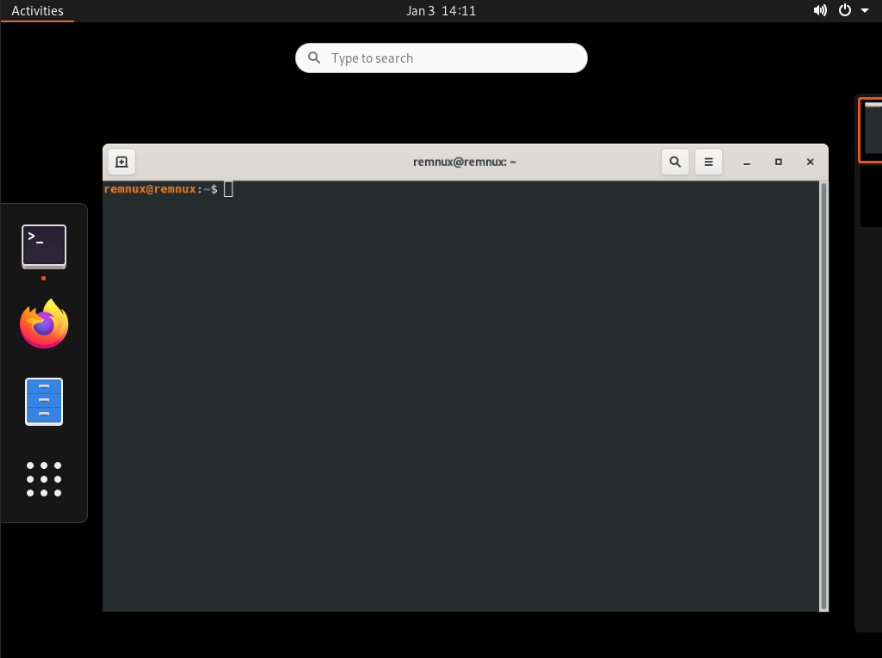
I was finally able to update the system using remnux upgrade.
The SPICE Problem
I previously mentioned a major caveat with using SPICE. If you set it to SPICE (qxl) on your first attempt and then boot the VM, you won’t boot into the REMnux desktop. Instead, either the screen will go black or it’ll stay stuck on “booting hard disk…”
Their solution to this problem was… interesting. I had to switch the CPU type to qemu32, attempt another boot, let it fail (it should get stuck again), switch the CPU type back to qemu64, and then I could boot normally. I thought I would only have to do this once, but I soon realized it was required for EVERY boot.
As one normally does, I went looking through the community and GitHub to see if this was a documented issue. On their docs repo in GitHub, I searched for “Proxmox” and found this exact CPU-type cycle referenced as the solution. In fact, it appears they updated the documentation based on this issue to include that CPU-type loop. Even more disheartening, the issue was created in 2024…
I was very annoyed by having to change the CPU type every time I wanted to use SPICE and boot into REMnux. I had initially attempted my first boot with SPICE; however, during troubleshooting, I switched the display to “VMware compatible,” not SPICE. I didn’t think that would be the issue.
Surprise, it was.
What I discovered was that, for some odd reason, SPICE had issues displaying the interface after the boot sequence. How do I know it was after the boot sequence? I noticed an interesting pattern. Sometimes, if I booted the machine with SPICE, I would see the “booting hard disk” message and then only a black screen. However, if I then did a normal shutdown of the VM—not a forced one—for a brief moment I would see the Ubuntu logo. I also noticed that if I went through the CPU-type loop, I would actually see the GRUB menu, allowing me to choose Ubuntu (again, REMnux is based on Ubuntu). If I then rebooted the machine, I wouldn’t see the GRUB menu again. This told me that the VM was able to load into REMnux; there was just some kind of display issue during the boot sequence.
So how do we fix this?
Interestingly, Ubuntu appears to have a common issue with graphics drivers during the boot sequence. In the Linux kernel, there’s Kernel Mode Setting (KMS). This allows the kernel to set the mode of the video card, configuring the display resolution, depth, and frequency instead of leaving it to user-level code.
Normally, this isn’t an issue. However, some graphics cards don’t work perfectly with it. SPICE is one of the graphics protocols that interferes with this process.
We should instead tell Linux to use the basic BIOS drivers during the boot sequence, instead of trying to use fancy graphics processes. This requires modifying a single line in a single file.
Here’s the solution:
- Open
/etc/default/grubin a text editor with sudo privileges. Pick your poison—I went withvim, but I won’t judge you if you usenano. - Look for the
GRUB_CMDLINE_LINUX_DEFAULTline. Append this text inside the quotation marks:nomodeset - You should see something like:
GRUB_CMDLINE_LINUX_DEFAULT="quiet splash nomodeset". - Save and exit the file.
- Execute
sudo update-grub. - Reboot.
You should now be able to switch the display adapter to SPICE without issues. Testing it myself, I confirmed I could reboot the machine while still using SPICE without having to go through that CPU-type loop again.
Setting nomodeset disables modesetting during the boot sequence, forcing it to use BIOS video drivers until REMnux has loaded and is ready to take over graphics.
I fixed that issue, and like any respectable person, I wasn’t going to gatekeep that information! My methods, though… might get some hate.
I explained my fix in a GitHub issue—the same GitHub issue from 2024…
Maybe they’ll update the docs. Maybe someone will come across my fix and find it useful. Maybe I’ll get scolded by the internet for necroposting.